
1Getting Started
Interface Overview
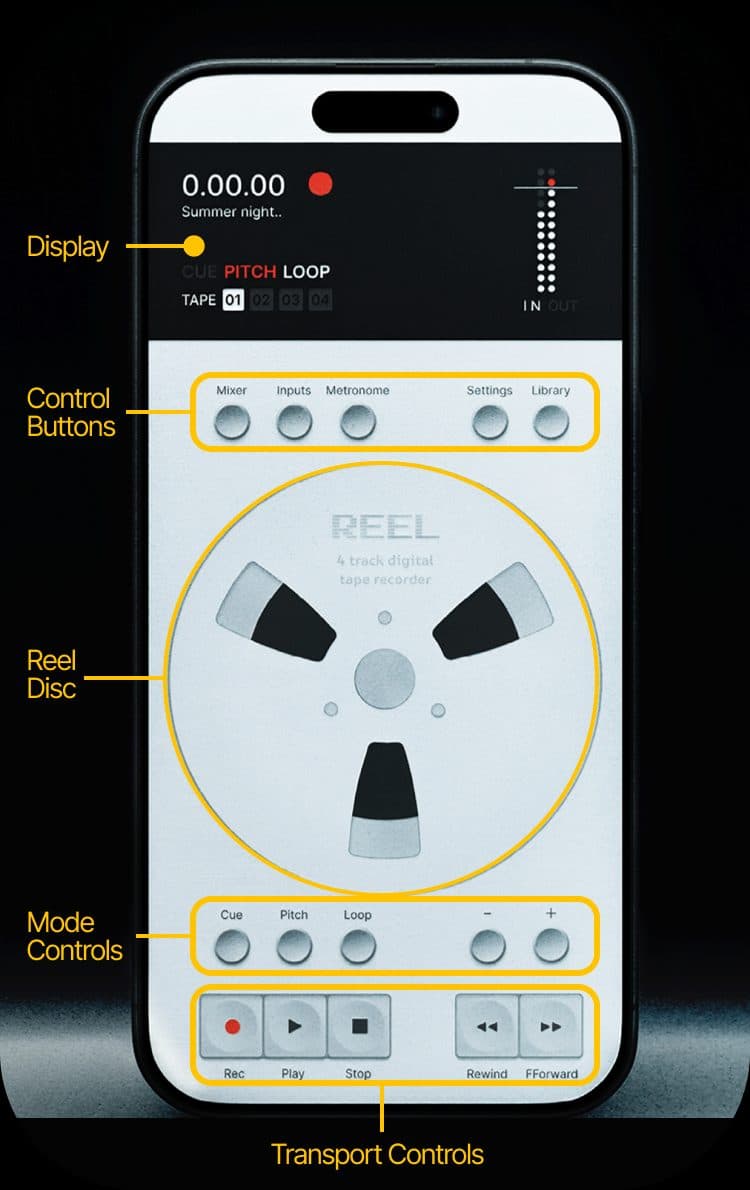
Reel's interface is organized into five zones, from top to bottom:
- Display Panel - Timecode, track info, mode indicators, and level meters
- Control Buttons - Five circular buttons: Mixer, In/Out, Tempo, Settings, and Library
- Reel Disc - The large central disc for scrubbing and pitch control
- Mode Controls - CUE, PITCH, and LOOP mode buttons with +/- controls
- Transport Controls - Record, Play, Stop, Rewind, and Fast Forward
Your First Recording
- Open Reel and grant microphone access when prompted.
- Tap REC to start recording. A red dot appears next to the timecode.
- Tap STOP to finish. Your recording is saved automatically.
- Tap PLAY to listen back. Rotate the disc to scrub through the audio.
Leaving and Returning
Reel keeps running in the background so your work is preserved when you switch apps or the screen locks. How the app behaves depends on what you were doing:
- Playing back - Audio keeps playing through your speaker or headphones, just like a music app. Control from the lock screen or Control Center.
- Recording - Recording continues in the background. If a phone call, Siri, or alarm interrupts, the take is automatically finalized and saved.
- Idle - The microphone is released and the orange mic indicator drops. No battery drain.
Picking Up Where You Left Off
Every reel remembers its own state. When you close a project and reopen it, or quit and relaunch Reel, it comes back exactly as you left it - the resume position and selected track, your mixer settings, the pitch, loop region, and active modes, and the tempo and time signature. Switching between projects never loses your place.
Long-Press Shortcuts
Four of the round buttons have a press-and-hold shortcut that saves a trip into a sheet:
- Hold Tempo - toggle the metronome on or off.
- Hold Settings - toggle DJ Mode on or off.
- Hold In/Out - enter MIDI map mode.
- Hold Cue - open the Cue Library (needs a loaded reel).
2Display Panel
Timecode
The large timecode display shows the current position in H.MM.SS format (hours.minutes.seconds). During playback, the display scrolls smoothly to show fractional seconds.
Turn on Bars Timeline in the Tempo sheet to read the position as Bar.Beat instead (for example, 001.1), locked to your tempo and time signature. See the Tempo & Metronome section for what this unlocks.
Track Name & Status
Below the timecode, the display shows the current track name or status message. Status overlays appear for 2 seconds when actions are triggered (e.g., "PLAY", "STOP", "CUE 001"). During recording, the display shows the recording mode and target track:
| State | Display |
|---|---|
| Fresh reel recording | NEW REEL REC |
| Recording to empty track | REC TR [1-4] |
| Overdubbing over existing audio | OVERDUB TR [1-4] |
| Punch-in mid-track | PUNCH TR [1-4] |
Recording Indicator
A red dot appears next to the timecode whenever recording is active.
Sample Rate Indicator
The current project sample rate is shown below the track name. If the connected audio source is running at a different sample rate, an arrow and red text appear (for example, 48kHz → 96kHz), indicating that Reel is converting the input rate to match the project. This is automatic and lossless.
Mode Indicators
Three labels - CUE, PITCH, and LOOP - show the current state of each mode:
- Grey - Mode is off
- Red - Active / recording / adjusting
- White - Locked / navigate / playback
Track Selector
Four numbered boxes (01–04) show which track is currently selected. The active track is highlighted. During a Resample capture, the target track box turns red and locks, so you always know where the print is landing.
Visual Metronome
When the metronome and its visual option are both on, a two-circle beat indicator appears on the display. The large circle flashes on the downbeat and the small circle marks the other beats, in sync with the click. It gives you the tempo at a glance without needing the sound.
Capture Indicator
A reel-to-reel indicator shows the state of Master Record and Resample. It reads R MODE when idle, R SMPL for Resample, and MSTR R for Master Record. The reels are dim when off, white when armed, and spin red while capturing. A separate vinyl indicator lights when DJ Mode is on. See the Master Record and DJ Mode sections for details.
Level Meters
Dual-channel (L/R) level meters sit on the right side of the panel, with a dedicated clip indicator at the top of the scale.
During recording, the IN label lights up and the meter shows your stereo input level. The input meter follows the tracks with input monitoring enabled (controlled by the "I" buttons in the Mixer), so it reflects what you actually hear.
During playback, the OUT label lights up showing output levels.
3Quick Reference
Every action at a glance:
| Action | How |
|---|---|
| Record | Tap REC |
| Pause recording | Tap REC during recording |
| Resume recording | Tap REC while paused |
| Play | Tap PLAY |
| Pause / halt | Tap STOP (or tap PLAY with reverse off) |
| Stop | Tap STOP |
| Reset to beginning | Double-tap STOP |
| Rewind | Hold REW (speed ramps up) |
| Fast forward | Hold FF (speed ramps up) |
| Scrub audio | Rotate the disc |
| Select track | +/- buttons (no mode active) |
| Create new project | Hold STOP + tap PLUS |
| Delete track | Hold STOP + tap MINUS |
| Add cue point | CUE mode (red) → tap + |
| Delete last cue | CUE mode (red) → tap - |
| Jump between cues | CUE mode (white) → +/- |
| Play from cue | CUE mode (white) → PLAY |
| Set loop IN | LOOP mode (red) → tap + |
| Set loop OUT | LOOP mode (red) → tap - |
| Adjust pitch/speed | PITCH mode (red) → rotate disc |
| Lock pitch | Tap PITCH again (goes white) |
| Reset pitch | Tap PITCH to cycle back to Off |
| Snap to nearest semitone | PITCH mode (red) → double-tap disc |
| Reverse (toggle) | Tap PLAY while playing |
| Reverse (hold) | Hold PLAY while playing |
| Jump forward one bar | Hold STOP + tap FF (bars mode) |
| Jump back one bar | Hold STOP + tap REW (bars mode) |
| Snap to nearest beat | Double-tap disc (bars mode, stopped) |
| Resample into a track | Hold STOP + tap REC |
| Master Record a performance | Hold STOP + hold REC |
| Toggle metronome | Hold Tempo |
| Toggle DJ Mode | Hold Settings |
| Enter MIDI map mode | Hold In/Out |
| Open Cue Library | Hold Cue |
4The Reel Disc
The reel disc is the centerpiece of the interface - a rotary control that behaves like a physical tape reel.
| Gesture | Action |
|---|---|
| Touch & hold | Pause playback at current position (haptic feedback on contact) |
| Drag / rotate | Scrub through the audio timeline - like rewinding or advancing tape |
| Flick & release | Momentum scrubbing - the disc continues spinning with natural deceleration |
| Rotate in Pitch mode | Adjusts playback speed (25% to 300%) instead of position |
| Double-tap in bars mode | Snaps the playhead to the nearest beat (when stopped, with Pitch off) |
Scrubbing stops automatically at the start and end of the audio - it won't wrap around, and a light detent marks each boundary. Scrubbing while the tape is stopped stays stopped when you let go - it no longer jumps back into playback on release.
Turn on DJ Mode and the disc becomes a turntable you can scratch, with the finger acting as the playhead. See the DJ Mode section for the full turntable behavior.
5Transport Controls
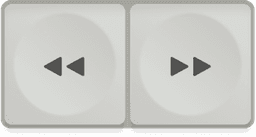
The transport bar at the bottom of the screen provides the core recording and playback controls.
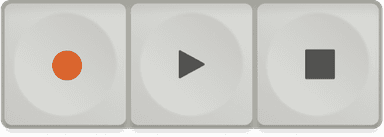
REC (Record)
- Tap to start recording. The display shows "NEW REEL REC" and a red dot appears.
- Tap again during recording to pause. Tap once more to resume.
- When overdubbing onto another track, the tracks you have already recorded play back while the new one records.
PLAY
- Tap to start playback.
- With reverse turned off, tap PLAY again to pause. With reverse on (the default), a tap on PLAY does not pause - in Toggle mode it flips direction forward or backward, and in Hold mode holding it drives reverse. Use STOP to pause or halt. See the Reverse section.
- In CUE Navigate mode, playback starts from the currently selected cue point.
- Tap PLAY while recording to finalize the recording and immediately begin playback.
STOP
- Single tap - Stops playback or recording. Position stays where it is.
- Double tap - Stops and resets position to the beginning (0:00:00).
- Hold STOP + tap PLUS - Create a new project. Hold STOP + tap MINUS - Delete the selected track.
- Hold STOP + tap FF / REW - In bars mode, jump forward or back one whole bar. See the Tempo & Metronome section.
REW (Rewind)
- Hold to rewind. Speed starts at 1x and ramps up to ~10x over one second.
- Release to decelerate smoothly back to normal speed.
- You can switch directly from Rewind to Fast Forward without releasing first.
- When a pitch is set, rewind and fast forward accelerate from your current speed rather than snapping to 1.0x first.
FF (Fast Forward)
- Hold to fast forward. Same speed ramping as Rewind.
- Release to decelerate. Supports mid-press direction switching.
- Fast forward stops cleanly at the end of the tape and will not run the audio past it.
6Mode Controls
Three mode buttons sit between the disc and transport controls. Each cycles through three states. The +/- buttons on either side change behavior depending on which mode is active.
CUE Mode
Tap the CUE button to cycle: Off → Add/Delete → Navigate → Off
| State | + Button | - Button |
|---|---|---|
| Off (grey) | Next track | Previous track |
| Add/Delete (red) | Add cue point at current position | Delete last cue point |
| Navigate (white) | Jump to next cue | Jump to previous cue |
PITCH Mode
Tap PITCH to cycle: Off → Adjusting → Locked → Off
| State | Behavior |
|---|---|
| Off (grey) | Normal playback at 1.0x speed |
| Adjusting (red) | Disc rotation controls speed (25%–300%). Display shows "PITCH ADJ" |
| Locked (white) | Speed is locked. Disc returns to scrubbing. Display shows "PITCH ±##%" |
Semitone mode
By default the disc sweeps pitch smoothly as a percentage. Turn on Pitch in semitones in Settings and Reel adds a stronger click each time the pitch crosses a semitone and shows the shift in semitones in the readout, so you can find musical intervals by feel. The pitch itself stays continuous either way - the setting adds the click and the readout, it does not force fixed steps. Separately, and whether or not that setting is on, you can double-tap the disc while adjusting pitch (the red PITCH state, the same one where the disc sets speed) to snap to the nearest semitone. This is the varispeed kind of pitch, so speed and pitch move together.
In DJ Mode the PITCH button does something different: its range narrows to a fine turntable-style pitch of plus or minus 10%, with its own saved value, rather than the 25-300% three-state cycle above. See the DJ Mode section.
LOOP Mode
Tap LOOP to cycle: Off → Recording → Playback → Off
| State | + Button | - Button |
|---|---|---|
| Off (grey) | Next track | Previous track |
| Recording (red) | Set loop IN point | Set loop OUT point (or clear loop if both set) |
| Playback (white) | Audio loops seamlessly between IN and OUT. Display shows loop duration. | |
7Recording
Starting a New Project
A project in Reel is called a reel. There are three ways to start a fresh one, and your current work is always saved automatically first, so you never lose anything by starting new:
- Library → New Reel - Open the Library and tap the New Reel button in the toolbar.
- Hold STOP + tap PLUS - The hardware-style shortcut, straight from the deck.
- Quick Record - The Action Button, Control Center and Siri always start recording onto a fresh reel. See the Quick Record section.
To delete a project, open the Library, then swipe on its row or long press it and choose Delete. Every reel you record stays in the Library until you delete it.
Recording a Fresh Reel
With no existing recording loaded, open the Mixer to arm tracks for recording. The R buttons are toggles - arm any combination of tracks. Arm all 4 and press REC to capture all tracks simultaneously (multi-track recording). The display shows "NEW REEL REC".
Layering Tracks Step-by-Step (Overdub)
To build up a recording one track at a time (overdubbing), use the +/- track selector together with the transport buttons. You do not need to open the Mixer for this flow, and it works the same way whether you are recording through the built-in iPhone microphone or a connected input. Each take goes onto its own track, not on top of the previous one.
- Tap REC to start recording on Track 1.
- When you are finished, tap STOP twice - once to stop, once more to rewind to the start. The TRACK indicator near the top of the display shows which track is active.
- Tap + to advance to Track 2. The TRACK indicator moves from 01 to 02.
- Tap REC again. Track 1 plays back through your headphones (or speaker) while Track 2 records your new take.
- Repeat steps 2 to 4 to fill Tracks 3 and 4.
- Open the Mixer to adjust volume, pan, mute, or solo each track independently.
Overdub Recording
With an existing recording loaded, the R buttons in the Mixer become radio buttons - only one track can be armed at a time. Tapping R on a different track automatically disarms the others. Select the target track and tap REC. Existing tracks play back through your headphones while the new track records. The display shows "REC TR 2" for an empty track, or "OVERDUB TR 2" when recording over existing audio.
Punch-In Recording
Seek to the position you want to re-record (using the disc or cue navigation), select the target track, and tap REC. The original audio from that point forward is temporarily replaced with your new recording. When you stop, the punch recording is spliced seamlessly into the original track. The display shows "PUNCH TR 2".
Pause & Resume
During recording, tap REC to pause. The position is maintained. Tap REC again to resume recording from the same point.
Record Length (Looper)
The Record Length picker in the Tempo sheet turns Reel into a looper (the full walkthrough lives in the Looping section). Set it to Off, 1, 2, 4, 8, or 16 bars. With a length set, a take ends itself sample-exactly on the bar and starts looping immediately - no Stop press needed. A fresh take promotes to a project and loops whole; an overdub or punch loops just its own region.
You can also record straight into a running loop. Press REC while a loop is playing and the take arms - the display shows REC NEXT LOOP with a blinking dot. Recording starts exactly on the next loop boundary, captures one pass, and drops in. Your new layer is audible on the very next time round, so you can stack overdubs without ever stopping the transport.
Wait for Sound
Wait for sound arms a take and holds until your input crosses a threshold, so the recording starts on the first note instead of on the button press. While it waits, the display shows WAITING. Set the threshold with its own slider and live level bar in the In/Out sheet. The detected sound is placed exactly at the armed position, and an incoming MIDI Start bypasses the wait. When Wait for sound is active it takes the place of the count-in.
Pre-Roll
Reel keeps a short rolling buffer of the input, so the moment just before you press REC is captured too. A note struck a hair early still makes it onto the take instead of being clipped off at the start.
Recording to a Click
Tap the Tempo button to set a tempo, turn on the metronome, and add a count-in before recording. When count-in is active, pressing REC plays the count at your set BPM before recording begins, and the display shows COUNT. The full set of tempo, time signature, count-in, and bars-timeline tools lives in the Tempo & Metronome section.
Multi-Input Recording (USB Audio Interface)
Connect a USB audio interface to record up to 8 input channels (4 stereo pairs) simultaneously to separate tracks. Reel auto-routes stereo pairs to tracks on first connect, so you see input signal immediately. Configure input routing in the In/Out panel if needed. Each input pair maps to a track (1-4). Starting a new reel with an interface connected re-arms the tracks for that interface automatically.
8Looping
Reel has two ways to loop: set loop points over audio you already have, or record with a Record Length so the take loops the moment it ends.
Loop existing audio (loop points)
- Tap LOOP once. The label turns red and the display shows LOOP REC - you are setting points now.
- Tap + where the loop should start (the IN point) and - where it should end (the OUT point). You can do this during playback or while parked. In bars mode both points snap to the beat grid.
- Tap LOOP again. The label turns white, the display shows LOOP PLAY, and playback now cycles between your points.
Tap LOOP a third time to turn looping off. Your points are saved with the project - cycle back to white later and the same loop returns without setting anything. If the display shows NO LOOP, no points have been set yet in this project.
Record a loop (Record Length)
This is the looper. Open the Tempo sheet and set Record Length to 1, 2, 4, 8, or 16 bars. Now press REC: the take ends itself sample-exactly on the bar and starts looping immediately, with no Stop press and no points to set. A fresh take loops whole; an overdub or punch-in loops just the region you recorded, wherever it sits on the tape.
To stack layers, press REC while the loop is running. The display shows REC NEXT LOOP with a blinking dot, recording starts exactly on the next time round, captures one pass, and drops in. The transport never stops.
9Quick Record
Quick Record starts a fresh take without opening the app first. However you trigger it, Reel launches straight onto a new reel and begins recording, so the idea lands before it is gone. It works from a cold launch, from the background, or with the app already open, and it never disturbs a take that is already rolling.
There are several ways to fire it:
- Action Button - Assign Reel to the Action Button, then press and hold to launch into a recording.
- Control Center - Add the Reel control for a one-tap record from anywhere. It can also be assigned to the lock screen controls.
- Siri - Say "Start recording in Reel" or "New take in Reel."
- Shortcuts, Spotlight, and NFC - Use the Reel action in your own Shortcuts and automations, launch it from Spotlight search, or trigger it by tapping an NFC tag.
- Home screen icon - A dedicated Quick Record app icon that opens straight into recording.
10Playback
- Tap PLAY to start. All tracks in a project play simultaneously. With reverse off, tap PLAY again to pause; with reverse on (the default), a PLAY tap flips direction, so use STOP to pause.
- Use the disc to scrub to any position before or during playback.
- Hold REW or FF for speed-ramped navigation (up to ~10x).
- Enable variable speed via PITCH mode (25%–300%) - speed persists when locked.
- In LOOP Playback mode, audio loops seamlessly between your IN and OUT points.
- Play the whole comp backwards with reverse - see the next section.
11Reverse
Reel plays the whole comp - all tracks together - backwards, at your current pitch and loop-aware. Reverse is turned on under Settings → Interface → Reverse playback (on by default). It is unavailable while DJ Mode is active.
Toggle or Hold
A Reverse mode setting chooses how PLAY behaves:
- Toggle - While playing, a tap on PLAY flips direction forward or backward. It does not pause; use STOP to halt. From a stop at the very end of the tape, PLAY starts in reverse.
- Hold - Press and hold PLAY to reverse. It fires instantly on press-down for tight timing, and returns to forward when you let go. A quick tap is a short reverse stab.
Recording in Reverse
- Reverse overdub - Press REC while reverse-playing to record a part over the backwards backing. Press REC or PLAY again to punch out; the take is saved and the reverse backing keeps rolling.
- Reverse punch-in - Overdubbing in reverse onto a track that already has audio splices the new reversed part into the region and leaves the rest intact.
- Reverse loop take - Inside a loop, REC arms (display shows REC NEXT LOOP), then records exactly one pass from the next wrap.
While reversing, holding REW speeds the reverse up in place, and holding FF hands back to forward on release. Reverse stops wind down with a tape-stop slowdown, and transitions are declicked throughout. Bar jumps work in reverse too.
12DJ Mode
DJ Mode turns the reel into a real turntable. It is built for playing out and mixing, not just scratching - you can cue a track, ease it in by hand, beat-match it against another source, nudge it back on the beat, and scratch over the top. Turn it on with Settings → Interface → DJ Mode, or hold the Settings button to toggle it instantly. When you switch it on, Reel pre-renders the scratch mix - the display shows Preparing, then DJ READY.
Holding the Platter
The heart of DJ Mode is pressure. Rest a finger on the spinning platter and it brakes by feel, exactly like laying a hand on a moving record, and where you touch sets how hard it brakes. Near the middle it is a light touch that eases the speed down gently; the closer you move to the outer edge, the more it bites, until the rim brings the platter to a full stop. Lift off and it rolls back up to speed. That is what makes real cueing and beat-matching possible: hold the record back, let it go on the downbeat, nudge it to line the beats up.
Scratching the Reel
The disc is a record with your finger as the playhead. Move it at playback speed and it sounds like normal play; push and pull it and you scratch. The motion carries turntable weight and direction flips are seamless. Holding the disc dead still fades to silence, the way a stopped groove has no sound. Disc Sensitivity does not apply here - the feel comes from the turntable physics.
Turntable Pitch
In DJ Mode the Pitch button narrows to a fine turntable-style pitch of plus or minus 10%, with its own saved value, separate from your normal pitch. Tap Pitch to switch between scratch playback and pitch adjust; it never resets on you.
The Tape Voice
Reel voices the transport like real tape: a reel-motor wind as the disc rides, head-bump body on fast forward and rewind, and a speed tone that tracks every varispeed move. It stays perfectly clean at 1.0x. This runs whenever you use the disc, not only in DJ Mode.
13Master Record & Resample
Two capture modes record Reel's own output. Both are armed from a held STOP, both trigger on sound, and both show their state on the reel-to-reel capture indicator (R MODE idle, R SMPL resampling, MSTR R master recording). They tap the post-fader master, so what you hear is what you get - the metronome and input monitor are excluded.
Resample (into a track)
Hold STOP, then tap REC. Resample prints the master mix onto the currently selected track. The target track box turns red and locks at the moment you arm, so moving the selector can't change where it lands. It follows the transport - Stop, the end of the tape, or reversing to the start all finalize it - and the display confirms with SAVED TO TRACK n. A plain REC press is refused while Resample is armed.
Master Record (to the Library)
Hold STOP, then hold REC. Master Record prints the whole performance - every pitch move, loop, cue jump, scratch, and stop - as one standalone stereo file saved to the Library, confirmed with SAVED TO LIBRARY. It runs independently of the transport and can capture while you overdub. The status line does not stay pinned, so track name, pitch, and transport remain readable during a live take.
Both modes arm on an audio threshold. Set the trigger level with the Master Record Threshold slider and its live output-level bar in the In/Out sheet; changes apply live to an armed capture. If a capture is interrupted by an engine rebuild (a USB unplug, for instance), the part recorded so far is saved instead of being lost.
14Tempo & Metronome
Tap the Tempo button to open the Tempo sheet, or hold it to toggle the metronome without opening anything. The sheet holds the tempo, the click, the count-in, the looper length, and the bars timeline.
Tempo & Time Signature
- BPM - Tap the big number to type a tempo (40–240), or use -/+. A single tap nudges by 1; press and hold to ramp continuously, faster the longer you hold, the same way fast forward accelerates.
- Time signature - Tap to type any signature (3/4, 4/4, 6/8, and so on), or step through presets with -/+. The click scales to the note value, so an x/8 signature clicks eighth notes.
- Tap Tempo - Tap the TAP button in time to set the BPM by feel.
- Volume - Independent click level.
Tempo and time signature are remembered per project.
The Metronome
- Metronome - The main on/off. Holding the Tempo button toggles this too.
- Visual metronome - A two-dot beat indicator on the display, flashing the downbeat in time with the click. The dots show only when the metronome and this toggle are both on.
- Practice click - Plays a free-running click while stopped so you can play in before a take. Turn it off and the click waits for Play, Record, or a scrub.
- Count-In - An independent count before recording (works even with the metronome off); the display shows COUNT.
The click is sample-accurate and follows the tape - it tracks your scrub, fast forward, rewind, varispeed, and reverse position rather than free-running. It plays on all four tracks while recording, not just the first.
Bars Timeline
Turn on Bars Timeline to read position as Bar.Beat. This unlocks:
- Jump by bar - Hold STOP and tap FF or REW to step a whole bar at a time. This works in reverse and relocates synced MIDI gear via Song Position Pointer.
- Snap to beat - A toggle that lands loop and cue points on the beat grid. Double-tap the disc while stopped to snap the playhead to the nearest beat.
In free-flow (timecode) mode there is no snapping - scrubbing stays smooth and unquantised.
Record Length
The Record Length picker (Off / 1 / 2 / 4 / 8 / 16 bars) sets the looper. See the Looping section for how takes end themselves on the bar and loop.
15Mixer
Tap the Mixer button to open the 4-track mixer. It rises as a half sheet over the main screen, anchored just above the disc, so the main controls stay live above it. Tap the Mixer button again to close it. Each track has independent controls:
- Volume - Vertical slider (0-100%). The orange fill shows the current level.
- Pan - Horizontal slider from L (left) to R (right). Center is the default.
- Mute (M) - Turns red when active. Silences the track completely.
- Solo (S) - Turns white when active. Mutes all other non-soloed tracks. Solo overrides Mute on the same track the way it does on a real desk - if a track is both muted and soloed, you still hear it.
- VU meter - Every channel strip has its own level meter, so you can see each track at a glance.
- Input gain - Long-press a fader to switch it into input-gain mode for recording. The gain is saved with the project.
Double-tap any channel to reset its volume, pan, mute, and solo to their defaults. The reset glides home on a motor ramp - the knob, the audio, and the readout move together with a soft rumble and a landing detent, rather than snapping. Mixer state saves with each project, so your settings stay put between sessions. Open a project from the library and your mix comes back as you left it. The whole mixer has a full dark-mode skin.
Can't see the Record Arm or Input Monitor buttons?
On smaller iPhones and on iPad the mixer opens in a compact view with the channel strips only. Tap the black display at the top of the mixer to extend the sheet up to the mode row, and the Record Arm and Input Monitor buttons appear. Tap it again to drop back down. On larger iPhones the full mixer is visible from the start, so there is nothing to extend.
If they are still not there, it is because nothing is plugged in. See the note below.
Record Arm (R)
When a USB audio device with 2 or more input channels is connected, the R buttons control which tracks will record when you press REC. Their behavior changes depending on the project state:
- Fresh reel (no recordings) - R buttons are toggles. Arm any combination of tracks for multi-track recording.
- Existing recording - Once any track has audio (whether you just recorded it or opened it from the library), R buttons become radio buttons. Only one track can be armed at a time for overdub recording. Tapping a different track automatically disarms the others.
Input Monitor (I)
When a USB audio device with 2 or more input channels is connected, the Mixer shows an INPUT MONITOR section with 4 I toggle buttons below the Record Arm buttons. These control what you hear through your headphones, independent of what records. With the built-in iPhone microphone these buttons are not shown because there is only one input source.
- White - Monitoring ON. You hear that track's input.
- Grey - Monitoring OFF.
When a USB device is plugged in, all tracks with configured routing automatically have monitoring enabled. When unplugged, monitoring resets to off.
If a monitor press can't be honored, Reel gives a distinct haptic and a short reason on the display rather than silently ignoring it - for example USE HP FOR MON (plug in headphones to monitor) or USE DEV FOR MON (a looping device like the OP-1 should monitor through itself). See Input Monitoring under Settings for the full picture.
16Cue Points
Cue points are saved markers that let you quickly navigate to specific moments in a recording.
Adding Cue Points
Enter CUE Add/Delete mode (tap CUE once), then press + at the desired position. Cue points are auto-numbered (CUE 001, CUE 002, etc.) and saved permanently with the recording.
Navigating Between Cues
Enter CUE Navigate mode (tap CUE twice), then use + and - to jump forward and backward between cue points. Press PLAY to start playback from the selected cue.
Deleting Cue Points
In CUE Add/Delete mode, press - to remove the most recently added cue point.
Cue Library
Hold the Cue button to open the Cue Library, a full editor for a reel's cues. From here you can:
- Reorder - Drag to reorder cues, which sets the order the +/- navigation follows.
- Rename - Give a cue a meaningful name.
- Preview - Hear a short preview of a cue. The preview borrows the transport and hands it straight back doing exactly what it was doing, so playback resumes, loops keep looping, and reverse re-enters.
- Delete - Swipe a row to delete, or use multi-select with select-all for a bulk delete.
Cues can also be mapped to controller pads over MIDI - see the MIDI section.
17MIDI
Reel syncs with and is controlled by external MIDI gear, over USB or Bluetooth. Everything lives in the In/Out sheet under a single master MIDI toggle, and every MIDI feature ships off by default so nothing changes until you turn it on.
MIDI Sync
Keep Reel and your gear on the same transport and clock, in either direction:
- Send transport - Reel starts, stops, and continues your gear when you record, play, and stop.
- Send clock - Your gear follows Reel's tempo.
- Receive transport - External play and stop drive Reel; a play-from-top or a double-stop returns Reel to the start.
- Receive clock - Reel's metronome follows your gear's tempo.
- Song Position - Bar jumps relocate synced gear, so everyone stays lined up.
With Receive transport on and an interface connected, long-press REC to arm a slave-mode take (the display shows REC ARMED). An incoming Start then records the current track instead of just playing along. Auto-disarm after take clears the arm after each take; turn it off for back-to-back retakes.
MIDI Learn (mapping)
Map your controller's knobs, faders, and pads to Reel. Long-press the In/Out button to enter map mode (a persistent indicator shows on the display). While mapping, tap the on-screen control you want, then move a knob or press a pad on your controller to bind it. Continuous controls are learned as continuous; notes and buttons as on/off.
- Mappable - Play, Stop, Record, Rewind, Forward; Cue, Pitch, Loop, Minus, Plus; the disc (as an absolute playhead, or a varispeed throttle); the mixer's volume, pan, mute, solo, arm, and monitor; the tempo controls; and individual cue points.
- Not mappable - The five menu buttons (Mixer, In/Out, Tempo, Library, Settings) stay on the screen so your sheets are always reachable.
A fader assigned to Fast Forward or Rewind is treated as an on/off switch and hinted (ON/OFF), since those stay button-style controls. Mappings save per controller and return automatically when you reconnect it; cue-point maps are saved per project as well. The MIDI Controls list shows the connected controller's assignments, each removable, with a Clear all.
Bluetooth MIDI
Pair a Bluetooth LE controller from the pairing page inside the In/Out sheet. Once paired it runs through the whole MIDI pipeline exactly like a wired controller.
18Ableton Link
Ableton Link (beta) keeps Reel in tempo with Ableton Live and other Link apps over Wi-Fi. The controls live in the Tempo sheet: turn Link on, optionally turn on Start/Stop Sync, and the sheet shows how many session participants are connected.
- Shared tempo - Reel's metronome and the session tempo track each other, both ways.
- Quantized launch - With Start/Stop Sync on, pressing Play arms the take and a NEXT BAR overlay appears; the start fires on the next session bar so Live and Reel begin together. Stops are immediate and cancel a pending start.
- Count-in over Link - A counted-in take announces itself a bar ahead so Live lands on your downbeat.
The tape start ramp is bypassed while linked so starts land tight. The section is marked BETA and includes a Send Feedback row that opens a prefilled report with device info and recent logs.
19Library
Tap the Library button to open the Reel Library where all your recordings are organized.
Browsing Recordings
Recordings are listed by date (newest first). Each entry shows the title, duration, track count, and file format. Tap any recording to load it into the main interface.
File Status
When using iCloud storage, a small icon next to each recording shows its current state:
- Local - The file is downloaded and ready to play instantly.
- Cloud - The file is stored in iCloud. Tap to download before playing.
- Downloading - A progress indicator appears while the file is being fetched from iCloud.
- Missing - The file could not be found. Check your iCloud connection.
Tags & Filtering
Create color-coded tags to organize your recordings. Tap a tag pill at the top of the library to filter. You can drag a recording onto a tag pill to assign it.
Actions
Swipe left on a recording to reveal actions:
- Share - Export via the system share sheet
- Rename - Change the recording title
- Tag - Assign or remove tags
- Delete - Permanently remove the recording
Long press any recording for a context menu with all available actions, ordered Load, Add to Track, and Bounce, then the organizing actions, then Delete. A New Reel button sits in the library toolbar, and each row carries a folder or waveform icon showing whether it is a multi-track project or a single file.
Add to Track
Long-press a recording and choose Add to Track to drop it straight onto a track of the reel you have loaded. Reel shows which tracks are occupied and asks before replacing one. A multi-track source is bounced down with its saved mix first, so you can ping-pong or bounce older projects into a new arrangement.
Duplicate
Duplicate makes a full copy of a reel - audio, cues, loops, mixer and playback state, and tags - so you can try a different mix or arrangement without touching the original.
Bounce to Stereo
A multi-track project holds more than one track of audio (overdubs, layered takes, or simultaneous USB inputs across tracks 1-4). The Bounce to Stereo option in the long press menu mixes the tracks down into a single stereo file using your current mixer settings (volumes, pans, mutes, solos), so the bounce sounds exactly like playback. Bounces carry the project name, as Song Name Mix or Song Name Loop. Bounce also works on a single-file take, so you can print a pitched or looped version to a new file. The output uses your chosen export format and saves as a new recording in the library.
Import
Tap the import button to bring in audio from your device. Supported formats: WAV, AIFF, and M4A.
Import is a small menu with two sources. From Files opens the Files picker; From Photos pulls audio out of a video in your photo library (a Camera clip or a screen recording), extracting the soundtrack through the normal convert pipeline. Both show stage labels while they work (Downloading, Importing, Converting), and a clear alert if an import can't complete rather than hanging.
From Files, the picker opens to the Reel folder by default. To import from Dropbox, Google Drive, iCloud Drive, or any other location, tap the back arrow in the top-left corner once to reach On My iPhone, then tap back again to reach Browse, where all your connected drives and cloud storage appear.
Batch Actions
Tap Select to enter selection mode. Choose multiple recordings, then use the action bar to share or delete them in bulk.
20Export & Sharing
What Gets Exported
Every export and share bakes in the way the recording actually plays - its saved pitch, its loop region, and the full mixer (volume, pan, mute, solo). What you hear in the app is what the recipient hears. A recording sitting at neutral settings exports exactly as before, so nothing changes unless you changed something.
When you share a multi-track project as stems, each track is printed with its own volume, pan, pitch, and loop baked in, and muted tracks are skipped. Projects that mix sample rates are resampled to a common rate before they are summed, so a bounce stays clean.
Export Formats
| Format | Quality | Details |
|---|---|---|
| WAV | Lossless | Uncompressed 32-bit float PCM at up to 96kHz. Full dynamic range preserved with zero clipping. |
| AIFF | Lossless | Uncompressed alternative to WAV. Same quality. |
| M4A | Compressed | AAC codec at 256 kbps. Capped at 48kHz. Smaller file size. |
Auto-Normalize
When enabled in Settings, exported audio is peak-normalized to -0.1 dB. This ensures consistent loudness across recordings without clipping, and only ever affects the export - your source recording is never modified.
Sharing
Share recordings via the iOS share sheet: AirDrop, email, Messages, Files, or any compatible cloud storage app.
Multi-track projects are packaged as a single .zip file so they travel as one attachment instead of a folder of separate tracks. Bounced and shared audio includes your current mix, so the recipient hears the same volume, pan, mute, and solo settings you last set in the Mixer.
21Settings
Audio Quality
- Sample Rate - 44.1kHz (CD quality), 48kHz (video standard), or 96kHz (high-resolution). Fresh installs default to 48kHz. The picker shows the rate the hardware is actually running, so a tap is a request - the highlight only moves once the device really switches, and if a change is refused the footer explains why. The picker locks during recording and playback.
- Bit Depth - Every project is 32-bit float. All recording, mixing, and export is 32-bit float. There is nothing to configure.
Reel records in 32-bit float end to end. Any audio that arrives at a lower bit depth (16-bit or 24-bit from hardware that does not support 32-bit float) is converted to 32-bit float to match the project. This does not increase the resolution of the original audio, but it never degrades it either. Sample rate is honored when the connected hardware supports it:
| Audio Source | What You Get |
|---|---|
| USB audio interface (32-bit float) | Records natively in 32-bit float at up to 96kHz, stereo. No conversion, no clipping. |
| USB audio interface (16/24-bit) | Records at the interface's native bit depth, then converted to 32-bit float to match the project. |
| iPhone built-in mic | iOS limits the built-in microphone to 48kHz, 24-bit, mono. Reel converts this to 32-bit float for the project. |
How Sample Rate Works
Each new project locks to the sample rate of the recording input. The first source you record from sets the project rate, which is why the same Settings value can produce different project rates depending on what you plug in. This is by design: it stops Reel from ever silently upsampling audio.
- Built-in mic - iOS caps the built-in microphone at 48kHz. A new project that opens with the built-in mic as the input will lock to 48kHz, even if Settings is set to 96kHz.
- USB interface or instrument at 96kHz - The project opens at 96kHz from the start with no conversion.
- Mixed sources in one project - The first recording locks the rate. Any later track recorded at a different native rate is converted to match.
Switching project rate after recording
Once a track is recorded, you can switch the project to a different rate in Settings. Reel will convert the existing file up or down to match the new project rate. Converting up does not improve the original audio, it only aligns the file to the new project rate so everything plays back in sync.
After a switch, future recordings show both rates in the display, e.g. 48kHz > 96kHz. The left number is the native capture rate, the right number is the project rate. This way you always know what was recorded natively versus what was converted.
USB rate override
When a USB interface owns the full audio route (input and output both through the interface), you can change its rate from Settings, and it really switches - genuine 44.1, 48, or 96kHz recording. A split route, where the interface is the input but you are listening through the phone speaker, is different: iOS pins the clock to the phone's output, so a rate change is refused and the footer tells you to switch your output to the interface. The built-in mic is pinned to 48kHz with the other rates greyed out. If the interface disconnects mid-session, the disconnect popup reports the rate you were actually running.
Microphone
- Source - Auto (system selects), Built-in, or External (when connected).
- Studio Vocal Mode - Enables Apple voice processing: noise reduction and echo cancellation. Ideal for voice recordings in noisy environments. Must be switched off when using a USB audio interface or instrument for multitrack recording.
- Recording Offset - Slider from -100ms to +100ms. Fine-tunes overdub alignment if new takes sound slightly ahead of or behind the existing tracks. Increase if vocals are late, decrease if early.
Input Monitoring
Input monitoring lets you hear your microphone or instrument in real time while you play or record. With a USB device connected, you control monitoring per-track using the I buttons in the Mixer (see Mixer section above). With the built-in mic, monitoring follows the current track automatically.
When is monitoring available?
| Setup | Monitoring | Reason |
|---|---|---|
| Built-in mic + iPhone speaker | Off | Prevents feedback loop between mic and speaker |
| Built-in mic + wired headphones | On automatically | No feedback risk with headphones |
| Built-in mic + AirPods, Bluetooth headphones, or Bluetooth speaker | Off by default | Bluetooth adds audio latency, and a Bluetooth speaker would feed back into the mic |
| USB interface + headphones into iPhone | On automatically | No feedback risk |
| USB interface + headphones into your interface | Off automatically | Your interface handles monitoring directly |
| Instruments (OP-1 Field) | On automatically | All 4 tracks monitored and routed on connection |
Monitor modes
The In/Out sheet always shows a monitor toggle with three options:
- Auto - Monitoring is on when idle or recording, and mutes during playback so you only hear the recorded tracks
- On - Always monitoring, even during playback
- Off - Monitoring disabled
The toggle is greyed out and locked to Off when you're on the built-in mic with the iPhone speaker. This prevents a feedback loop. Plug in headphones, AirPods, a Bluetooth speaker, or a USB device and the picker becomes active.
On Bluetooth outputs (AirPods, Bluetooth headphones, Bluetooth speakers), monitoring defaults to Off each time you connect, because of Bluetooth's audio delay and the feedback risk with speakers. You can switch it On for the session. When Bluetooth disconnects, your previous (non-Bluetooth) setting comes back. USB interfaces are different: each one remembers its own monitoring choice and restores it the next time you connect that device.
Reel remembers your monitoring preference and per-track monitor state for each device. When you reconnect the same interface, your settings are restored automatically.
Interface
- Reverse playback - Turns reverse on or off (on by default). Reverse mode chooses Toggle or Hold. Greyed out and forced off while DJ Mode is on. See the Reverse section.
- DJ Mode - Turns the scratch turntable on or off. Also toggled by holding the Settings button. See the DJ Mode section.
- Pitch in semitones - Adds a stronger click and a semitone readout as you adjust pitch, without stepping the pitch itself. (Double-tapping the disc to snap to the nearest semitone works whether this is on or off.) See Mode Controls.
- Haptic Feedback - Toggle on/off. Controls haptic response for buttons and disc interaction.
- Haptic Strength - Sets how strong the vibrations feel, from Light to Strong.
- Disc Sensitivity - 1 (slow, precise) to 10 (fast, broad navigation). Default is Level 5. Reset button returns to default. (Does not apply in DJ Mode.)
- Large Buttons - Accessibility option that scales up the smaller round controls (modes like Cue, Loop, Pitch and menus like In/Out, Library, Settings) to a 44 pt tap target for easier reach.
- Appearance - System (follows your iPhone's appearance setting), Light, or Dark. Defaults to System, and applies live to the open Settings sheet.
Tape Start / Stop
Reel can wind the tape up when you press Play and spin it down when you press Stop, click-free. Turn Tape Start / Stop on for that feel, or off for instant Play and Stop. When it is on, a Speed choice sets the character:
- Studio - The quickest wind, barely there.
- Deck - A middle ground.
- Vintage - The signature slow tape wind-up and wind-down (the default).
Multi-Output Routing
With a multi-output interface connected, an output-mode picker appears in the In/Out sheet (it is shown only when the interface actually has the channels). It saves globally and falls back to stereo automatically when the interface disconnects.
- 2ch - The normal stereo master out.
- 8ch - Each track pair flows out on its own hardware output pair.
- 10ch - Tracks 1-4 each go out on their own pair, plus the master mix on outputs 9 and 10.
Mixer volume, pan, mute, solo, and per-track pitch are baked into the outgoing pairs, so your mix and tape ramps carry through. The metronome, input monitor, and DJ scratch audio stay on the master. This turns Reel plus a mixer like the TX-6 into a small hardware mixing rig.
Storage
- Location - iCloud Drive (syncs across devices) or On My iPhone (local only).
- Current storage usage and available space are displayed.
Export
Set your default export format: WAV, AIFF, or M4A. Auto-Normalize is an optional toggle that peak-normalizes to -0.1 dB on export only - your source recording is never modified.
Data Management
Delete All Recordings removes every recording from your device (and iCloud if enabled). This action cannot be undone. A confirmation prompt appears before anything is deleted.
Feedback & Diagnostics
- Share Session Log - Exports a log of the current session. Useful when reporting a bug or unusual behavior.
- Email Developer - Opens a pre-filled email to the Reel support address.
Purchases
Restore Purchases re-syncs any in-app purchases tied to your Apple ID, including the Reel Founder unlock. Use this if you reinstall Reel or switch to a new device.
Founders Beta
If you are a Reel Founder, the Founder section shows a Founders Beta row that opens the TestFlight beta, where you can try new features and versions early. The invite is served remotely, so it can be refreshed without an app update. The row is invisible to non-Founders.
About & Legal
Shows the current app version, links to the Privacy Policy, Terms of Service, and online User Manual, and a support email link. The section signs off with Reel by 24bit Studio.
22Workflows
Multi-Track Band Recording
- Record the first instrument/part on Track 1.
- Press + to select Track 2, then tap REC. Track 1 plays back while Track 2 records.
- Repeat for Tracks 3 and 4.
- Open the Mixer to adjust volume and pan for each track.
- Use Mute/Solo to focus on specific parts during review.
- Export the final mix from the Library.
Loop Recording
- Record or load an existing track.
- Tap LOOP to enter Recording mode.
- Press + at your desired start position to set the IN point.
- Press - at the end position to set the OUT point.
- Tap LOOP again to enter Playback mode - audio now loops seamlessly.
- Select a new track and tap REC to overdub within the loop.
Punch-In Re-Recording
- Load the project you want to fix.
- Use the disc or cue navigation to seek to the section that needs re-recording.
- Select the target track with +/-.
- Tap REC to begin punch-in recording at that position.
- Tap STOP or PLAY to finalize. The new audio replaces the original from the punch-in point.
Speed & Pitch Adjustment
- Tap PITCH to enter Adjusting mode.
- Rotate the disc to set your desired speed (25%–300%). Double-tap the disc to snap to the nearest semitone; turn on Pitch in semitones in Settings for a click and readout at each semitone.
- Tap PITCH again to lock the speed.
- Press PLAY - playback runs at the locked speed. Useful for transcription (slow) or quick review (fast).
- Tap PITCH once more to reset to 1.0x.
Looping a Phrase
- Open the Tempo sheet, set your tempo, and choose a Record Length (say 4 bars).
- Tap REC and play. The take ends itself on the bar and starts looping.
- With the loop running, tap REC again - it arms (REC NEXT LOOP) and records one pass on the next wrap.
- Keep stacking layers this way without stopping the transport.
Capturing a Live Set
- Hold Settings to switch on DJ Mode and wait for DJ READY.
- Hold STOP, then hold REC to arm Master Record.
- Perform - scratch the disc, ride the pitch, jump cues. It all prints to one file when the output crosses the threshold.
- Hold STOP + REC again to finish. The take saves to the Library.
23USB Audio Devices
Auto-Routing
When you plug in a USB audio device for the first time, Reel automatically routes stereo input pairs to tracks so you see input signal immediately. No manual configuration needed. Per-device preferences are saved and restored on subsequent connects.
Single-channel (mono) interfaces are supported too. Reel reads the interface's own channel layout, so a one-input device records correctly to a track.
Two-channel and MFi wired interfaces (such as the Behringer UMC202HD, the M-Audio AIR series, the iRig Mic Field, and iRig Lightning inputs) are now treated as real audio interfaces. You get proper per-track input routing, and the old phantom "built-in mic" picker no longer appears for them.
When a USB device is unplugged, Reel resets to Track 1 and disarms all other tracks.
OP-1 Field
The OP-1 Field outputs 8 channels over USB, allowing true multi-track recording - one track per channel pair. Reel auto-routes all 4 stereo pairs to tracks 1-4 and enables monitoring on all tracks. Before connecting:
- On the OP-1 Field, go to System > USB Mode.
- Set USB Mode to 8ch.
- Connect to your iPhone via USB-C and select the OP-1 Field as your input in Reel.
Original OP-1
The original OP-1 is limited to 2-channel USB output - all 4 tracks are mixed into a single stereo pair. To record each track individually into Reel, use this workaround:
- In Reel's Mixer, set the channel input for all 4 tracks to the stereo output 1–2 from the OP-1.
- On the OP-1, mute tracks 2, 3, and 4 - leave only track 1 playing.
- In Reel, arm Track 1 (shown as 01 on the main display) and record.
- Next, on the OP-1, solo track 2 (mute 1, 3, 4). In Reel, press + to arm Track 2 and record.
- Repeat for tracks 3 and 4.
24Audio Specifications
| Specification | Options |
|---|---|
| Sample Rates | 44.1 kHz, 48 kHz, 96 kHz |
| Bit Depth | 32-bit float (recording, mixing, and export) |
| Recording Format | WAV (32-bit float PCM, uncompressed) |
| Export Formats | WAV, AIFF (both 32-bit float), M4A (AAC) |
| Max Tracks | 4 stereo tracks per project |
| Max USB Inputs | 8 channels (4 stereo pairs) |
| USB Output Routing | 2ch stereo, or 8ch / 10ch multi-output (per-track pairs, plus the master mix on 9-10 in 10ch) |
| Pitch/Speed Range | 25% – 300% (±10% fine pitch in DJ Mode) |
| Supported Devices | iPhone, iOS 18+ |