
The expansion lets Reel and the device swap files over the USB-C cable, with no computer: tapes, takes, projects and kits come into Reel, reels go back onto the device. The TX-6 and an OP-XY in multichannel USB open six tracks on the deck. The TX-6 gets Mixdown Mode too.
1Getting the expansion
Where it lives
Settings›Purchases›Reel Expansion The row shows the price until you buy, then Purchased. For a Founder it reads Included. Tap it and the purchase sheet comes up over the main display: an intro page and one page per device, with the four device names as chips under the title. Tap a chip to jump to its page, swipe to move between them, tap the lit chip to come back to the intro.
A purchase waiting for approval says so and opens the expansion the moment it comes through. Restore Purchases sits under the row for a new phone or a reinstall; it tells you what it found.
Founders. The first launch after the update shows the Founder page once: nothing to buy, plug in and it is open. A line under it lets you buy the expansion anyway, if you want to support Reel.
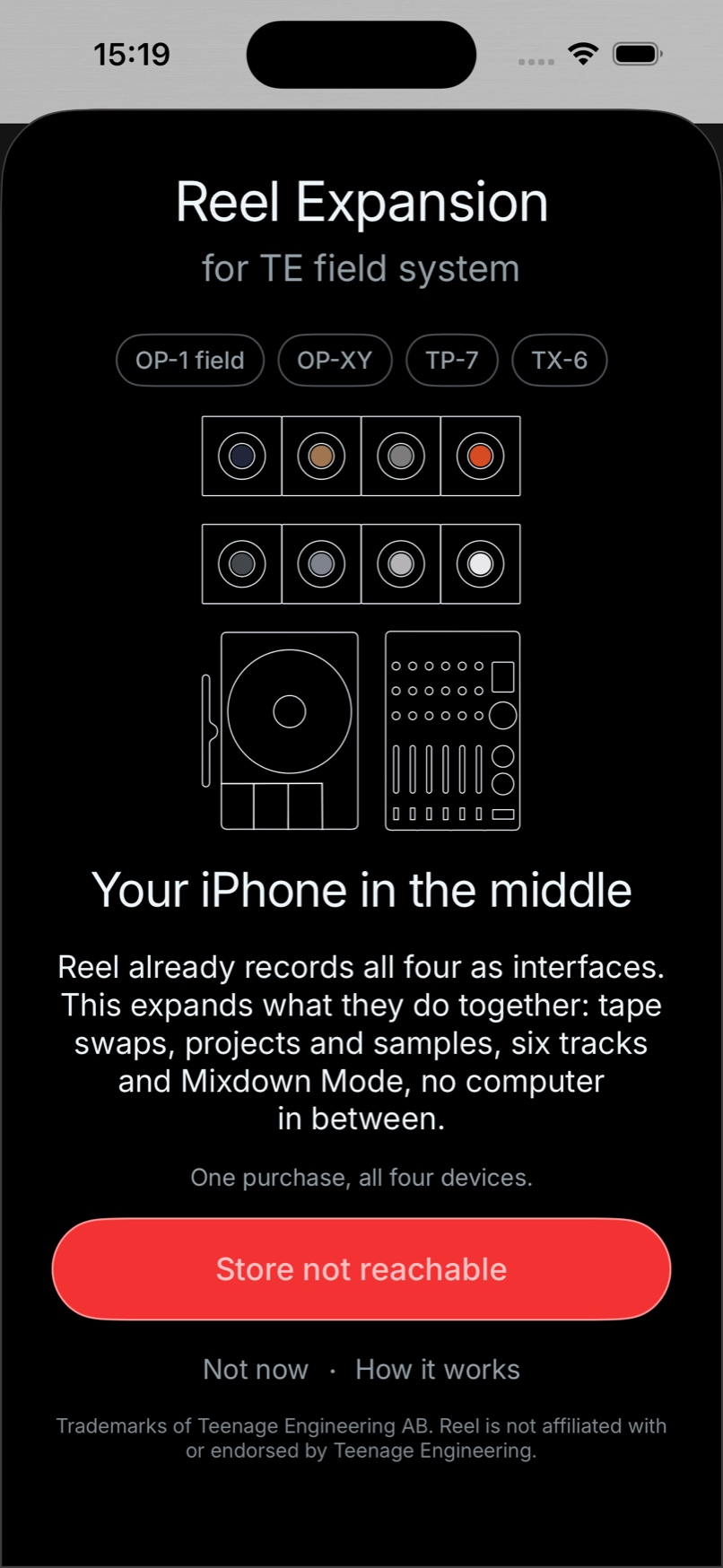
An intro page and one page per device. Swipe between them or tap a chip.
- the priceNot bought yet. Tap to open the purchase sheet.
- PurchasedYou have it.
- IncludedYou are a Founder. It is yours already.
- Buy for <price>One purchase, all four devices. The sheet turns to You have the expansion when it goes through.
- Not nowCloses it. From the plug-in popup the display then says FIND IT IN SETTINGS.
- How it worksOpens the expansion page on reelaudio.app.
The invitation, and the links
Without the expansion, the third time you plug in an OP-1 field, OP-XY, TP-7 or TX-6, Reel shows the purchase sheet open on that device's page. Once, ever. It waits if a take is rolling or another sheet is up. It never shows for a Founder or an owner.
The Buy button on the expansion web page and the expansion on Reel's App Store page both open the same sheet in Reel, owned or not.
The sheet never comes back on its own. Settings has it whenever you want it.
What opens
The moment the purchase goes through, the devices are recognised; no relaunch. An OP-1 field, OP-XY or TP-7 in MTP mode turns the main display into its browser and the Library grows a page for it. A TX-6 in a twelve-channel USB mode or an OP-XY in 8 channel USB opens six tracks on the deck. Without the expansion all four still record as interfaces, four tracks at a time, as they always did.
2The device browser
Two directions for every device: device to Reel to bring things in, Reel to device to send.
The count and a progress line under the device name. Leave the device alone until it finishes.
How it opens
Plug the device into your phone and put it in MTP mode, the file transfer mode every one of these devices shows as mtp on its own screen; the keys for each are in its part below. The display flashes the device's name with CONNECTED. When the transport is idle, the display becomes the device browser on its own; if a take or playback is running, the browser waits and opens the moment you stop. Your loaded reel stays where it is underneath.
Where you are. The top line names the device, the line under it reads Connected for a moment and then says where you are: Tape Swaps or Projects & Samples at the root, then the level you have opened. Each device's part below maps its rows. Every action is written as the path to it, like Tape → Reel›Tapes. A short hint under the rows says what hold + does for the row you are on.
Opens the row.
One level up. Cancels a copy.
Import, send, back up, restore.
Rename on the TP-7. Delete a sample on the OP-XY.
Back to the reel. The device stays connected.
Open or close it while a device is connected.
Controls
Turn the disc to scroll the rows. Hold Library with the transport running and Reel says STOP TO BROWSE. Play, Rec, the winds, Cue, Pitch and Loop do nothing while you browse; press one and Reel asks Close browser?, + for yes, − for no.
Going back. Reel remembers where you came from: − out of a tape's tracks lands back on that tape, out of a send's last step back on the destination you picked.
Press − during a copy. Nothing half-done is kept.
A transport press mid-copy asks Close MTP browser? Yes abandons the copy.
After a cancel on the OP-1 field or OP-XY the device keeps sending the file it was on. Keep the cable in.
While it copies
The line under the device name reads Copying with the percentage, in red. A line under the bar says what is coming: Importing Track 2/4 for a tape, Importing Recording, Sending to Field and so on. A file that fails to come down is asked for again before Reel gives up with Import failed.
Cancelling. Press − to cancel. The display reads TRANSFER with CANCELLED under it. A batch keeps every file that already landed. On the OP-1 field and OP-XY the device carries on sending the piece it was on: Reel shows FINISHING with KEEP IT PLUGGED IN. Pull the cable in that window and the OP-1 field freezes until you restart it.
Room. Every import first checks for room on the phone: twice the file plus a margin. Not enough space is the refusal.
3OP-1 field
What you can do
The OP-1 field and Reel share one tape. A tape comes off the OP-1 field as a four-track reel; one of its tracks can drop onto a track of the reel you have open instead. A reel goes back as a tape in any of the four tape styles. Mixdowns come in as audio. Drum kits back up to Reel, play from your MIDI keys as Reel's instrument and go back when you need them.
Everything happens in the browser on Reel's display, which opens on Tape Swaps the moment the OP-1 field is in MTP mode.
- Tapes
- Mixdowns
- Drums
Bring things in.
- Tapes
- Drums
Send the loaded reel, or a kit, out.
Disc to move, + to go in, − to go back, hold + to do it.
On the device
Plug the OP-1 field into your phone with the USB-C cable. Hold shift and press COM, then press T4 for mtp. Reel's display opens on the OP-1 field.
Plug in first. T4 is the key under mtp on the screen.
When you are done. A tape or kit you sent is there once the OP-1 field leaves MTP mode.
Hold + on a tape to bring the whole thing in. Press + to open its tracks instead.
Pick the track of the open reel it lands on. A track with audio asks Overwrite? and takes a second hold +.
Four tracks, named like the tape, at the OP-1 field's own rate. Ready to play.
Tapes in
A whole tape. Tape → Reel›Tapes Hold + on a tape and it becomes a Reel project with all four tracks in place, named like the tape. It loads straight away; a name you already have gets a number.
One track. Press + on a tape to open its tracks, + on a track, then hold + on the To Track row you want. The track joins the reel you have open; a single-file reel becomes a project first and an empty deck gets a new project named like the tape. If the target already has audio the line reads Track N has audio, the first hold + asks Overwrite Track N? Hold + and the second does it. Track N placed confirms. Targets are tracks 1 to 4.
Mixdowns. Tape → Reel›Mixdowns Hold + on a mixdown and it comes into your Library as audio.
Reels out
Load the reel you want to send first. Reel → Tape›Tapes Hold + on Studio 4-track, Vintage 4-track, Porta 4-track or Mini Disc.
What goes over. Each track is printed as you hear it: its volume, pan, mute and solo at the reel's pitch. A missing track goes over silent. The tape carries your project tempo. The tape takes the reel's name, numbered if that name is already on the OP-1 field. You need a free tape slot; with all eight taken Reel says Tapes full - free one. The tape shows in the browser straight away and on the OP-1 field once it leaves MTP mode.
Pick the tape machine the reel becomes, then hold +.
Reel builds the tape and sends it. Keep the cable in until it says Sent to Field.
The bright row is the six minutes that will go.
Turn the disc and the window slides with it. Rest a finger to hear it from there.
A long reel: the cut window
A tape holds six minutes. Send a reel that plays longer than that and the display reads Longer than tape and opens the cut window: Plays with the reel's length, Tape holds 6:00 and the stretch that will go. A reel at a higher pitch prints shorter, so a ten-minute reel at double speed needs no cut.
Choosing the six minutes. Turn the disc to move the start point; you hear the tape as you scrub. Rest a finger on the disc and it plays from the start point so you can check it. FF and Rewind wind. With a tempo set, Tempo flips the window into bars: the disc then snaps beat by beat and the winds jump a bar, so the tape starts on the one. The start cannot pass the last six minutes. Hold + to cut there and send; − goes back to the tape styles. The playhead returns to where it was when you leave.
Hold + on a kit or on Back Up All for every kit.
Every kit comes over in one go, named as on the OP-1 field.
Drum kits: back up and send back
Backing up. Tape → Reel›Drums Hold + on a kit or on Back Up All. Kits are copied as they are, patch and all, under OP-1 Field in the Library, with a cue at every hit named by its key. A kit you already have is skipped (Already on Reel); a kit you changed on the device comes in as a new dated version beside the old one (1 new version).
Sending back. Reel → Tape›Drums Hold + on a kit in your Library to send it back. It lands on the OP-1 field in a drum pack called reel, numbered if the name is taken, with everything already on the device left as it was. From the Library, hold on a kit for Send to OP-1 Field or select kits and use the Field button. The result tells you how many went: leave MTP mode to see them in the reel pack.
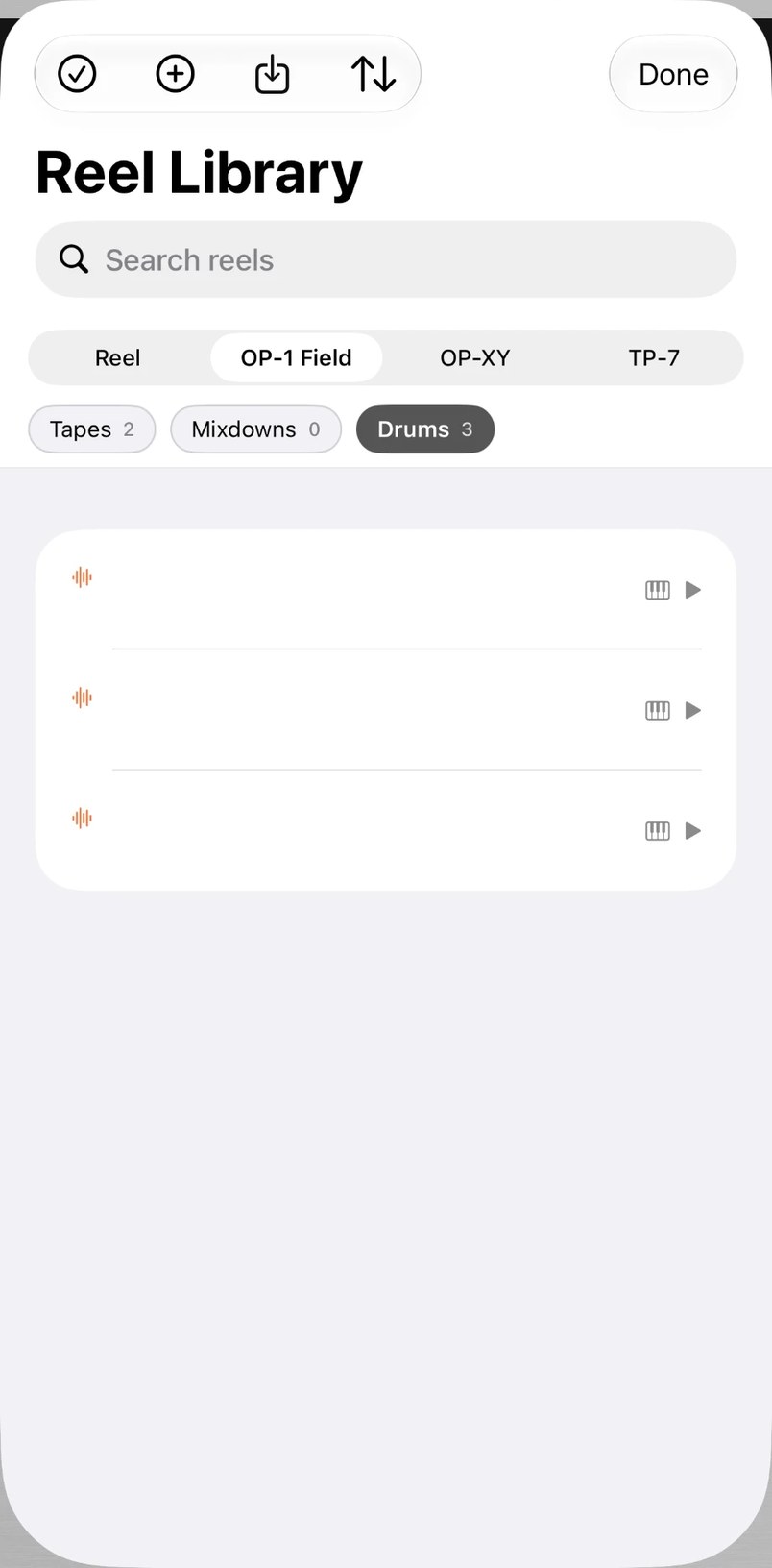

Library › OP-1 Field › Drums. The keyboard control on a kit row: play loads it, the orange stop ejects it.
The kit's name sits under the reel's title while it is live.
Rec records what you play on the selected track.
Play a kit from your keys
Open the Library, choose OP-1 Field and Drums, then tap the keyboard control on a kit row or the row itself. The display reads DRUM KIT LOADED and KIT with the kit's name under the reel's title. The kit is now Reel's instrument, sitting beside the reel you have open; the reel itself is untouched.
The keys. Any MIDI keyboard Reel can see plays it: a USB controller, a Bluetooth one paired from the Bluetooth MIDI page in the In/Out sheet or the OP-1 field's own keyboard with the OP-1 field plugged in as an instrument, out of MTP mode. Two octaves from F3 upwards, one key per hit, exactly as the kit lays out on the OP-1 field. Each hit is a one-shot: a new press cuts the last. Nothing to set up in MIDI; the keys just work.
Recording it. Press Rec. The display reads REC with an arrow from DRUM KIT: the kit is the input for this take and the mic or interface is set aside. The take records at the tape's pitch; the hits themselves sound at their own. A new take made this way is named after the kit. Reel refuses to load or eject a kit while recording: STOP RECORDING FIRST.
Putting it away. Tap the orange stop control or the live kit's row and the display reads DRUM KIT OFF; your mic or interface is the input again. The kit stays loaded when you switch reels. With Open last reel on launch it is still there the next time you open Reel. Loading the kit's own audio onto the deck, hold on the row and choose Load, ejects it: a kit is either the instrument or a recording, never both.
4OP-XY
What you can do
The jam you record keeps its OP-XY project with it. A snapshot saves the project, its samples and presets into the reel; months later you restore it to the OP-XY and carry on or hand it to a collaborator. Samples go both ways, Reel can delete samples the OP-XY cannot. In 8 channel USB the OP-XY records six tracks into Reel.
- Snapshot to <reel>
- Samples
Save the project with your recording; bring samples in.
- Restore Project
- Send Audio
Put a project back; send a reel as samples.
Disc to move, + to go in, − to go back, hold + to do it.
Plug in first: mtp only appears while the OP-XY is connected.
When you are done. A restored project shows once the OP-XY leaves MTP mode.
On the OP-XY, out of MTP mode.
OS 1.2.0 or later. System settings, the usb page, the 8 channel output.
On the device
Plug the OP-XY into your phone, press com, then M4 for mtp. Reel's display opens on the OP-XY once it has read the samples folder, a second or so.
For six tracks over USB, choose the 8 channel output on the OP-XY's usb page. Its routing presets decide what sits on each channel, so check Reel's In/Out sheet after you plug in; the layout is remembered for the next connect. See Six tracks on the deck.
Record with the OP-XY, press com and the key under mtp, and the browser opens on the Snapshot row.
A new reel takes the OP-XY project's name when Reel can tell which saved project you played.
Snapshots
Record a jam with the OP-XY as your input, then put it in MTP mode: press com, then M4 under mtp. The browser opens straight on OP-XY → Reel›Snapshot to <reel> when the take is recent. Hold +. Reel saves the working state of the OP-XY into the reel: the live project, your saved projects and only the samples and presets they use. Snapshot saved confirms. Nothing on the device is changed.
Naming, and originals. A reel still wearing its automatic name takes the project's name when the live project is one of your saved ones: Saved as night drive. A reel you named keeps its name. A reel with a snapshot wears a small grey mark in the Library and also lists under OP-XY as a project. It is an original: press Rec on it and Reel offers Duplicate to Rec. Snapshot the same reel again without recording and the new state stacks beside the old one, dated.
Hold + puts the snapshot's project back on the OP-XY.
Press + on Restore Project to pick a date, newest first.
The project is on the OP-XY under the reel's name, with any sample or preset it needed put back first.
Restore Project to OP-XY
Load the reel that carries the snapshot. Reel → OP-XY›Restore Project Hold +. With more than one snapshot, press + first and hold + on the date you want. From the Library, hold on the reel and choose Restore Project to OP-XY; the dates sit in a submenu there too. Then on the OP-XY leave MTP mode, hold shift and press project to open it.
How it restores. Restoring only ever adds. Samples and presets the project needs go back first, then the project, under the reel's name. A project that is already there, under any name, is left alone and Reel tells you the name: There as night drive. A different project under the same name is kept and yours gets the next number. An unsaved jam restores as a saved project. Nothing is overwritten or removed.
Share Snapshot. Hold on the reel in the Library and choose Share Snapshot: the project and its samples go to the share sheet as one zip, to AirDrop to a computer or pass to a collaborator who restores it from their own Reel.
Hold + on a sample or on a folder for everything in it as one row.
Send Here, a folder already there or New Folder.
A reel with more than one track asks: the mix as one file or every track as its own.
Samples in and out
In. OP-XY → Reel›Samples Hold + on a sample and it lands under OP-XY in the Library; hold + on a folder and the whole folder comes in as one row.
Out. Reel → OP-XY›Send Audio sends the loaded reel. Pick Send Here, a folder or New Folder, then Stereo Mix or Tracks. Tracks sends every track as its own file, printed with its mix and pitch, in a folder named after the reel, one key each. From the Library, hold on any recording for Send Audio to OP-XY or select several and use the OP-XY button. A selection with a multitrack reel asks Stereo Mix or Tracks, one file each. A folder row goes over as a folder. The OP-XY takes samples up to twenty seconds, so anything longer is refused before it is sent: Over 20 seconds.
Deleting a sample on the OP-XY
The OP-XY has no way to delete a sample on the device, so Reel does it. OP-XY → Reel›Samples then hold − on the sample or folder. Reel first reads every project on the OP-XY: a sound the live project uses is refused outright (Live project uses it); one a saved project uses is named in the question so you know what loses it.
The question. The alert offers Back Up and Delete when the sound is not yet in your Library and Delete when it is; Cancel sits beside it. A backup is checked before anything is removed. Only your own samples are reachable: factory sounds, projects and presets are not.
The hint rolls between hold + to import and hold − to delete on rows Reel may delete.
5TP-7
What you can do
The TP-7's library on your phone. Takes land in your Library, a multitrack take as a reel of up to six tracks. Hold Library to close the browser, press Library, tap the take to load it, then press Play. Back Up All brings every take over in one go. A reel goes back to the TP-7 as a multitrack take or a stereo mix. Cue markers travel both ways. You rename recordings, files and folders on the TP-7 from your phone.
- Recordings
- Library
Your takes and the sample folders on the device.
- Recordings
- Library
Where the loaded reel lands, then Multitrack or Stereo Mix.
Disc to move, + to go in, − to go back, hold + to do it.
On the device
Plug the TP-7 into your phone while it is switched off, then hold Stop as you turn the power on. It starts in MTP mode, its own screen reads MTP and Reel's display opens on it.
With the TP-7 off and plugged in, hold Stop while you switch it on.
Unplug or switch off and on. A take you sent or a name you changed is there once it leaves MTP mode.
Hold + on a take or on Back Up All for every take you do not have yet.
Hold + on a folder for the whole pack as one row. Press + to look inside.
A multitrack take opens as six tracks in Reel, every channel pair on its own track.
Takes and samples in
Takes. Tape → Reel›Recordings holds your takes: hold + on one and it lands under TP-7 in your Library. The browser stays open: hold Library to close it, press Library, then tap the take to load it. A mono or stereo take is one recording; a multitrack take becomes a project, one stereo pair per track, up to six. Hold + on Back Up All for every take you do not have yet; Nothing new means you have them all.
Samples and markers. Tape → Reel›Library holds the sample folders on the device. Press + to open a folder and hold + on a sound; hold + on the folder instead to bring the whole pack in as one folder row named like it. Back Up All at the top brings the whole library over, packs kept together. Markers on a take arrive as cues on the reel, in order, named if they came from Reel and numbered if they were made on the TP-7.
Reels out
From the browser. Load the reel first. Reel → Tape›Recordings or Reel → Tape›Library, where you pick Send Here or one of the folders already there. Then hold + on Multitrack or Stereo Mix; a one-track reel offers Stereo Mix only. Every track is printed with its mix and pitch; the reel's cues go along as markers. A very long multitrack send is refused with Too long - send Stereo Mix. Sent confirms; the take shows on the TP-7 once it leaves MTP mode.
From the Library. Hold on any recording for Send to TP-7 or select several and use the TP-7 button. A sheet asks where: Recordings, Library, one of the TP-7's folders, the pack's own folder for a whole imported pack or New Folder with a name you type. A folder row goes over as a folder of the same name through Send Folder to TP-7. Before sending Reel reads what is already there: an identical file is skipped and counted, so the result reads like 3 sent, 12 already there. Nothing on the TP-7 is ever overwritten.
Select recordings, tap TP-7, pick where they land. A whole pack is offered as its own folder.
Recordings lands as a take with a datestamp name. Library keeps the reel's title, here or in a folder.
Multitrack sends every track as one take. Stereo Mix sends the mix as one file.
Rename on the TP-7
From the browser. Tape → Reel›Recordings for a take, Tape → Reel›Library for a file or a folder. Rest on it and hold −, type the name, Rename. Renamed confirms; Name taken means the TP-7 already has one. The TP-7 shows the new name the next time it leaves MTP mode.
From the Library. Hold on anything that came from the TP-7 and is still on it, a folder row too, then choose Rename on TP-7: it renames in both places at once.
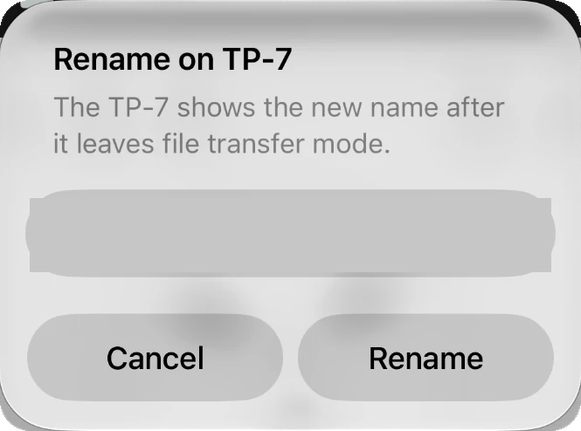
Reel asks for the new name on the phone.
Rest on a take, a file or a folder: the hint rolls between hold + to import and hold − to rename.
The row takes the new name at once. Renamed confirms.
6TX-6
What you can do
The TX-6 has no files to swap; it is an audio interface. The expansion opens its multichannel side. Record all six channels in one take, each on its own track. Play the reel back out one track per strip and mix it by hand on the TX-6. Mixdown Mode does both at once: the six tracks go out to the strips and the TX-6's master comes back into Reel as the finished mix.
Which of these you get depends on the TX-6's USB mode, set on the device.
On the device
Set the USB mode before you start: it decides what Reel can do with the TX-6.
Turn the knob to usb and press select, turn to the mode, press select.
The mode takes effect as you leave. Reel notices on the fly, no need to unplug.
USB modes
Four modes, four jobs. 12 CH sends twelve channels back rather than the mix, which is why Mixdown is not offered in it. Reel keeps a separate channel layout for the tracking modes and the mixing modes, so the In/Out sheet is right whichever one you come back to.
A stereo interface. The main mix in on one pair, Reel out through the TX-6. Four tracks.
Every strip into Reel on its own pair. The tracking mode: six tracks, one per strip.
Reel's tracks down to the strips, the stereo mix back. The mixing mode and the only one with Mixdown.
Both at once: strips in, tracks out. Track while hearing the reel on the strips. No Mixdown here.
Six channels in, six tracks out
In 12 OUT or 12 CH each channel lands on its own track, separate to edit or mix later. The In/Out sheet shows six routing rows.
Playing the reel on the strips. In 12 IN or 12 CH the In/Out sheet's output picker chooses how the reel plays out. On 12ch every track has its own strip, 01 to 06 on strips 1 to 6, to mix on the TX-6 with its faders, EQ and effects; a silent track leaves its strip free for a live instrument. Your choice is remembered for every connect.
Six routing rows, one strip pair each, and the output picker on 12ch.
A new reel arms six tracks. Press Rec and every strip you play into is a track on the reel.
- 2chThe stereo mix plays on outputs 1 and 2.
- 10chTracks 01 to 04 on strips 1 to 4, the stereo mix on the last pair.
- 12chEach track plays on its own TX-6 strip. Mix them on the TX-6.
- Mixdown12ch, plus hold Stop then hold Rec records the TX-6 mix beside the reel. 12 IN only.
Hold Library. Each track plays out to its own strip.
Hold Stop, then hold Rec as well. Play starts the print.
Stop ends it. The mix sits beside the reel as its name followed by Mix (TX-6).
Mixdown Mode
Mixdown is 12ch plus a recording of the TX-6's mix. It needs the TX-6 in 12 IN. Load a reel and hold Library: MIXDOWN ON. To print, hold Stop and keep it held, then hold Rec as well for half a second until MIXDOWN ARMED. Let go of both and press Play. The TX-6's stereo master comes straight back into Reel while the reel plays; Reel's own input monitoring is muted for the pass.
Ending, and leaving. Press Stop when you are done: Reel does not stop by itself at the end of the tape, so reverb and delay tails on the TX-6 run out before the file closes. Hold Library again to leave: MIXDOWN OFF. The refusals say what to do: STOP FIRST, LOAD A REEL FIRST, TX-6 TO 12 IN. Resample is not available while the mode is on (NOT IN MIXDOWN). Change the TX-6's USB mode or unplug it and the mode switches itself off.
A full pass, start to finish
- TX-6 to 12 OUT. Plug in. New reel. Play your six sources into the strips with Rec running. Stop.
- TX-6 to 12 IN. Reel keeps the reel loaded. Hold Library: MIXDOWN ON.
- Press Play and set your mix on the TX-6. Stop.
- Hold Stop and keep it held, then hold Rec as well until MIXDOWN ARMED. Let go of both and press Play. Mix as it runs. Press Stop after the tape ends.
- The mix file sits beside the reel in the Library. Hold Library: MIXDOWN OFF.
7Six tracks on the deck
Tracks 05 and 06
The deck grows to six tracks when the loaded reel has more than four (a TP-7 multitrack take, a TX-6 or an OP-XY recording) or when a six-track interface is plugged in: a TX-6 in a twelve-channel mode or an OP-XY in 8 channel USB. + and − step straight across from 04 to 05 and the display's track row follows.
The banks. The Mixer shows the six on two banks, like changing a tape. Hold the solo button on the fourth strip and the faders sweep to 05 and 06 on the first two strips; the info line flashes 05 06 XX XX. A spare strip answers TRK NOT IN USE. Tracks 05 and 06 have everything the others have: arm, monitor, mute, solo, volume, pan and input gain. Hold the same button to come back. The Mixer opens on the first bank each time a reel loads.
Field system only. Six tracks open for the field system only. With any other interface Reel records four tracks as before. A six-track reel still plays and overdubs on six whatever is plugged in. The In/Out sheet shows six routing rows for a six-track interface, four otherwise. Add to Track from the Library places onto tracks 1 to 4.
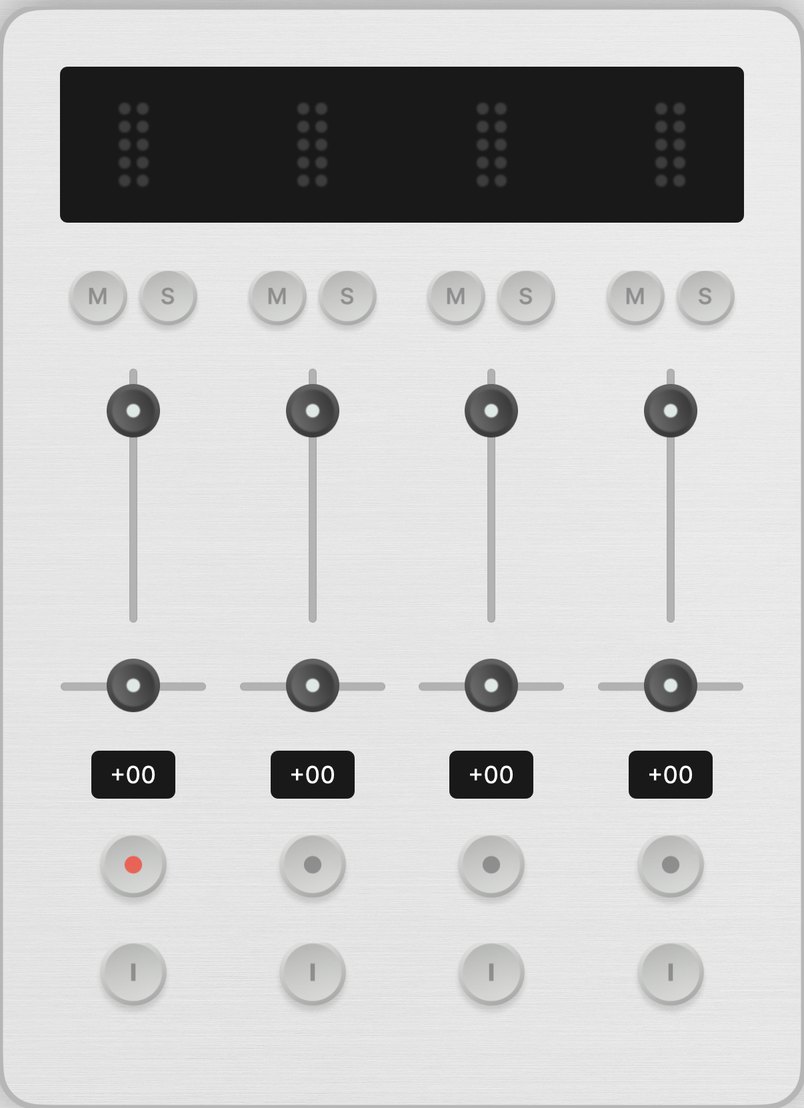


Hold the solo button on the fourth strip to swap banks. The two spare strips read XX.
The track row shows the bank in use.
- 01 02 03 04The first bank. The Mixer opens here each time a reel loads.
- 05 06 XX XXThe second bank. Hold solo on the fourth strip to get here and back.
8The Library
One page per device
The Source picker at the top of the Library appears once something has come from a device, with a page per place. Everything from a device files under its page, in the category it came from, so your own recordings stay on the Reel page. Device rows take no tags of your own.
Row marks. A folder icon is a reel with more than one track, a waveform a single track. A small grey camera mark on the date line means the reel carries an OP-XY snapshot; a grey tape mark means an untouched OP-1 field tape, exactly as it came off the device. A kit row carries the keyboard control instead of a track count. A sample pack or an album comes in as one folder row with its date, total length and file count; tap it to unfold.
The OP-1 Field page on Drums: the kits that came over, each with the keyboard control.
- ReelYour own recordings, as before. Your tags live here.
- OP-1 FieldTapes, Mixdowns, Drums.
- OP-XYAll, Projects, Samples.
- TP-7All, Recordings, Library.
Originals are read only
Anything that came from a device is an original; so is any reel with a snapshot. Press Rec on one and the display reads ORIGINAL, READ ONLY and asks Duplicate to Rec?: + makes a copy, loads it on the same track and bank and says DUPLICATED. READY TO REC; − leaves it. Stop + minus on an original says ORIGINAL. DUPLICATE TO EDIT. The copy lands on the Reel page; the original stays as it came.
+ makes the copy and loads it on the same track; − keeps the original as it is.
The copy is yours, on the Reel page. It never records on its own.
Hold on a row
Folder rows. A folder row has its own menu: Send Folder to the connected device, Rename on TP-7 when the folder is still there, Rename, Share / Export for everything inside and Delete Folder. Renaming or deleting a folder in Reel touches nothing on the device.
Several at once. In selection mode the bar offers Share, the connected device's button (TP-7, OP-XY or Field for kits), the count and Delete, for the rows you can see.
Deleting a reel with a snapshot asks three ways. Delete Recording and Snapshot removes both. Delete Snapshot and Keep Recording leaves the jam as plain audio. Delete Recording and Keep Snapshot leaves a project backup under OP-XY with the grey mark, ready to restore or share, that cannot load.
- LoadOnto the deck.
- Add to Track…Onto track 1 to 4 of the loaded reel. Asks before it replaces audio.
- Bounce to StereoThe mix as one file.
- Rename, DuplicateA duplicate of a device file lands on the Reel page as yours.
- Share / ExportThe share sheet.
- Export Mono StemsEvery track as left and right mono files, zipped. For everyone.
- DeleteA reel with a snapshot asks what to keep.
- Send to OP-1 FieldA kit row, back into the reel drum pack.
- Send to TP-7Any recording, then where it lands.
- Rename on TP-7A row that is still on the TP-7. Renames both.
- Send Audio to OP-XYAny recording, then where it lands.
- Restore Project to OP-XYA reel with a snapshot; a submenu of dates when it has several.
- Share SnapshotThe project and its samples as one zip. Needs no device.
9Rules and limits
Nothing is ever overwritten
Additive only. Reel adds to a device and never writes over or removes what is there, with one exception: the sample delete on the OP-XY, which asks first. A name that is taken gets a number, Song 2. A file that is already there, byte for byte, is skipped and counted. The OP-XY's live workspace, its factory content and the OP-1 field's mixdowns are never written to.
Needs a loaded reel: sending a reel to any device, Snapshot, Restore Project, Mixdown Mode. Needs the transport stopped: opening the browser, Mixdown on or off, loading or ejecting a kit, deleting the open reel.
When the device shows it. Files you send and names you change show in Reel's browser at once and on the device once it leaves MTP mode. A cable pulled mid-recording never interrupts the take.
- OP-1 field tapeSix minutes a track, eight tape slots. Longer reels go through the cut window.
- OP-XY sampleTwenty seconds of printed length. Longer is refused before anything is sent.
- TP-7 send250 MB a file. A long multitrack reel is refused: send the Stereo Mix instead.
- TP-7 foldersReel lists 250 entries a folder and imports a pack of up to 500 files, three levels deep.
- room on the phoneTwice the file plus a margin, checked before every import.
- over 4 GBA file that size is refused: copy it with a computer.